Here's how it works – step by step:
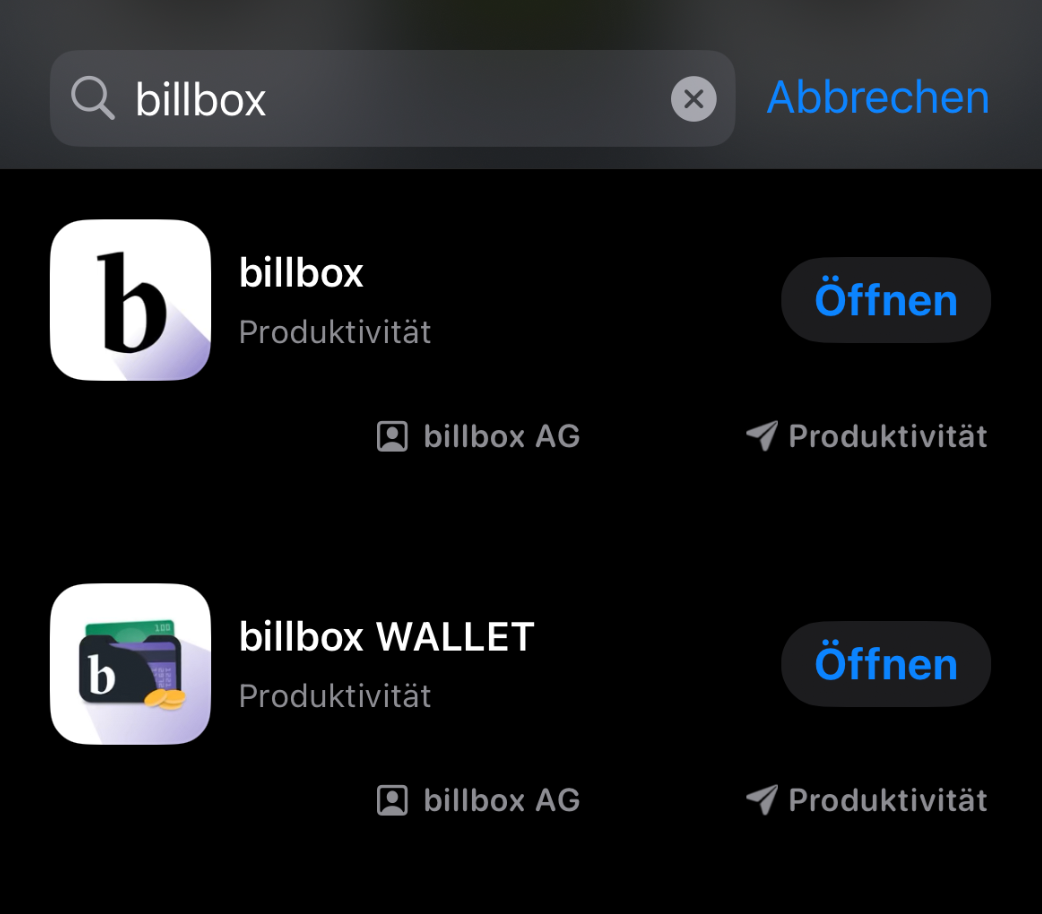
1. Download the billbox app
Get the app from the App Store or Google Play Store on your smartphone.
2. Open the app and log in
Launch the app and sign in using your usual username and password.
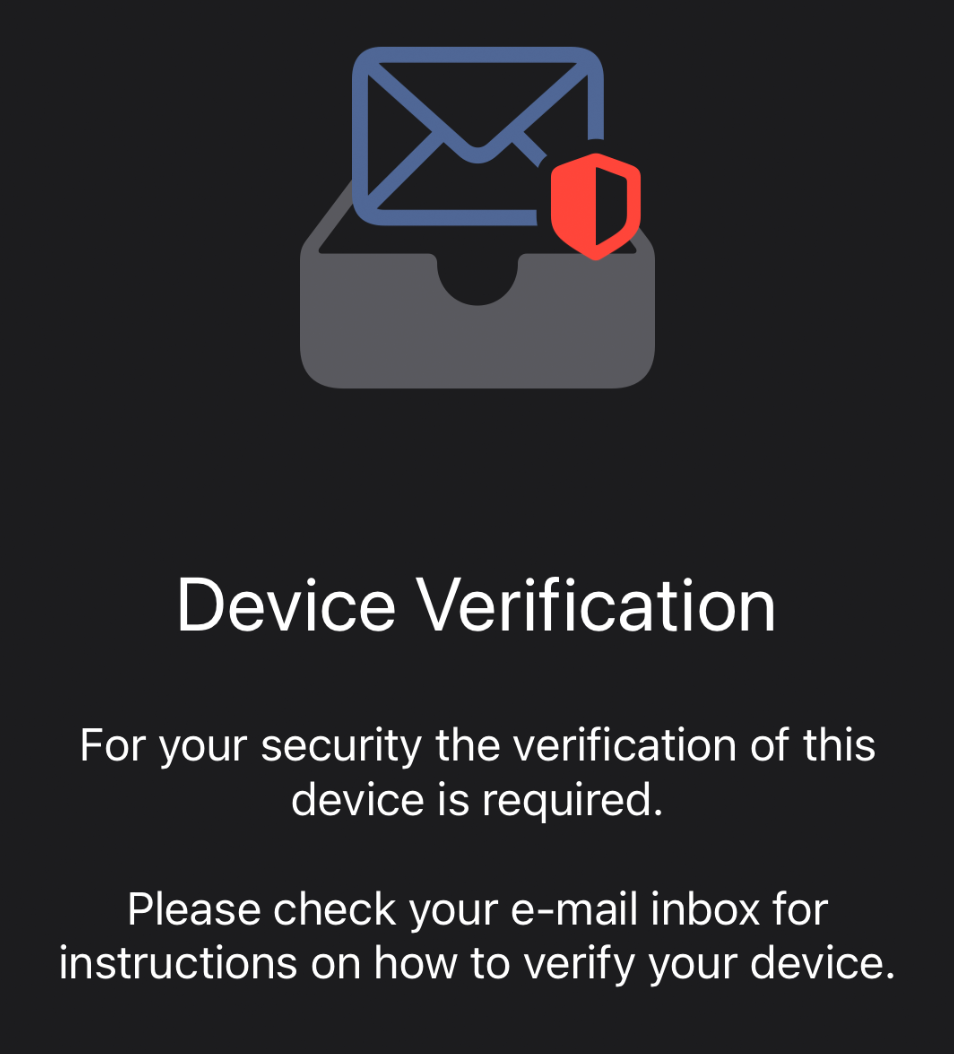
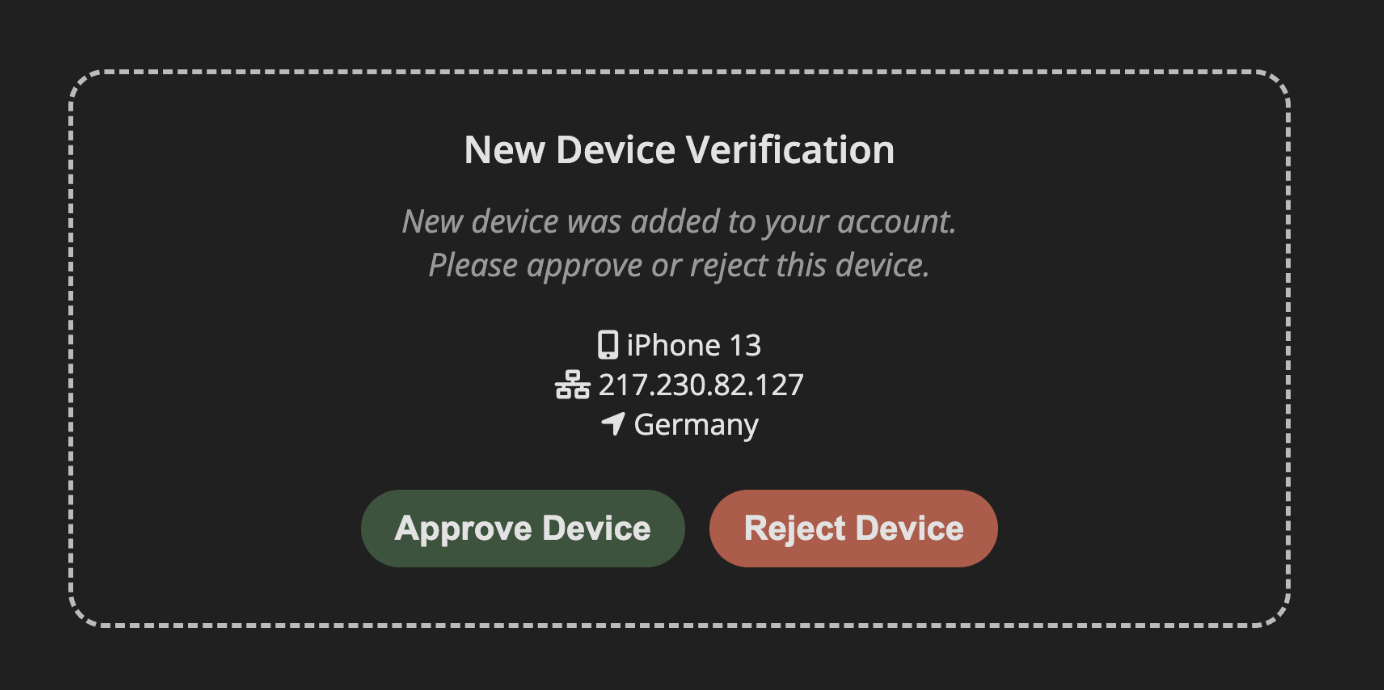
3. Verify your device
You'll be prompted to verify your device. Tap on “Refresh Status” to begin the process.
4. Retrieve the confirmation link
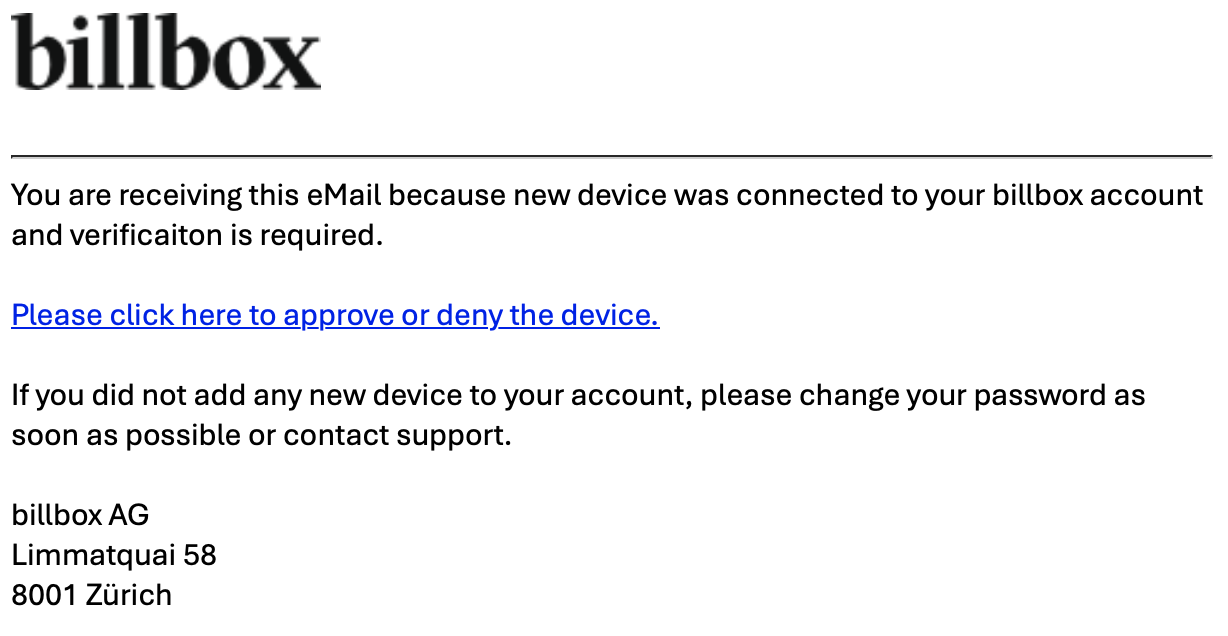
You'll receive an email with a confirmation link sent to the address stored in your billbox account.
👉 Ideally, open this link on a desktop computer where you're already logged into billbox.
5. Confirm your device
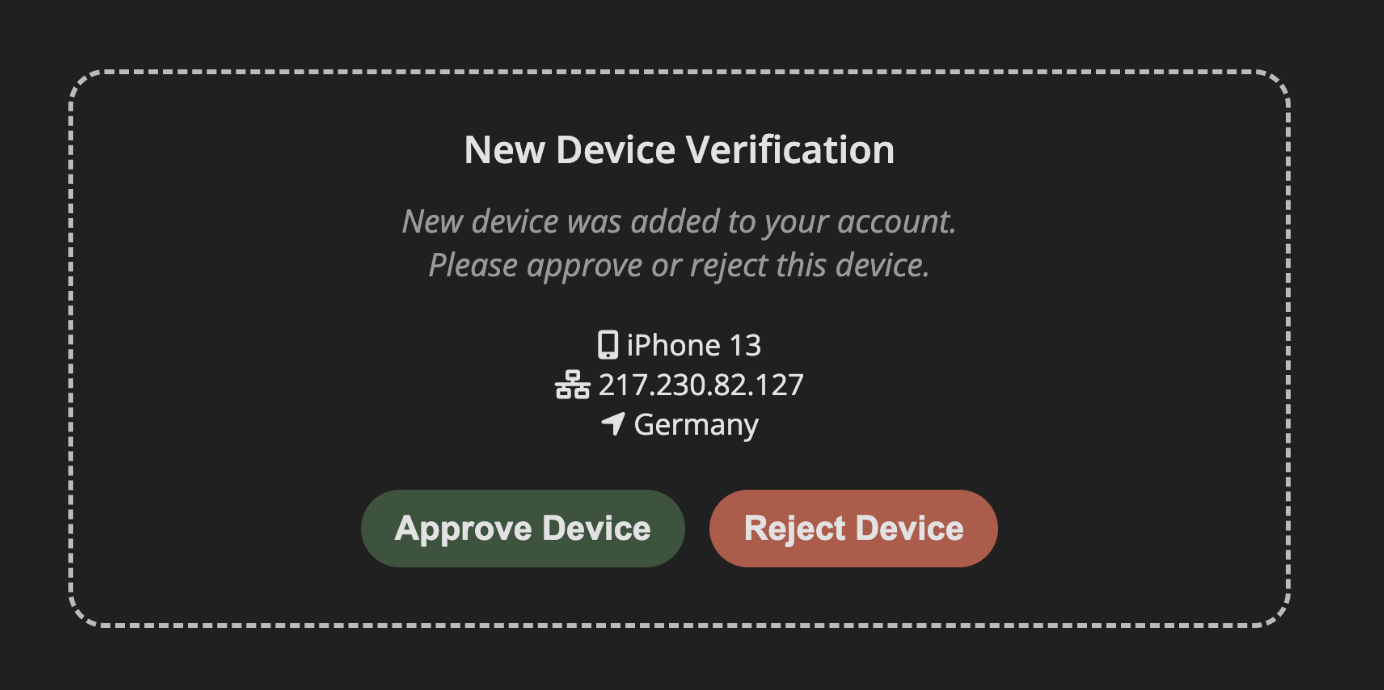
Use the link to authorize your smartphone as a trusted device.
6. Return to the app and enable push notifications
Go back to the billbox app and allow push notifications when prompted.
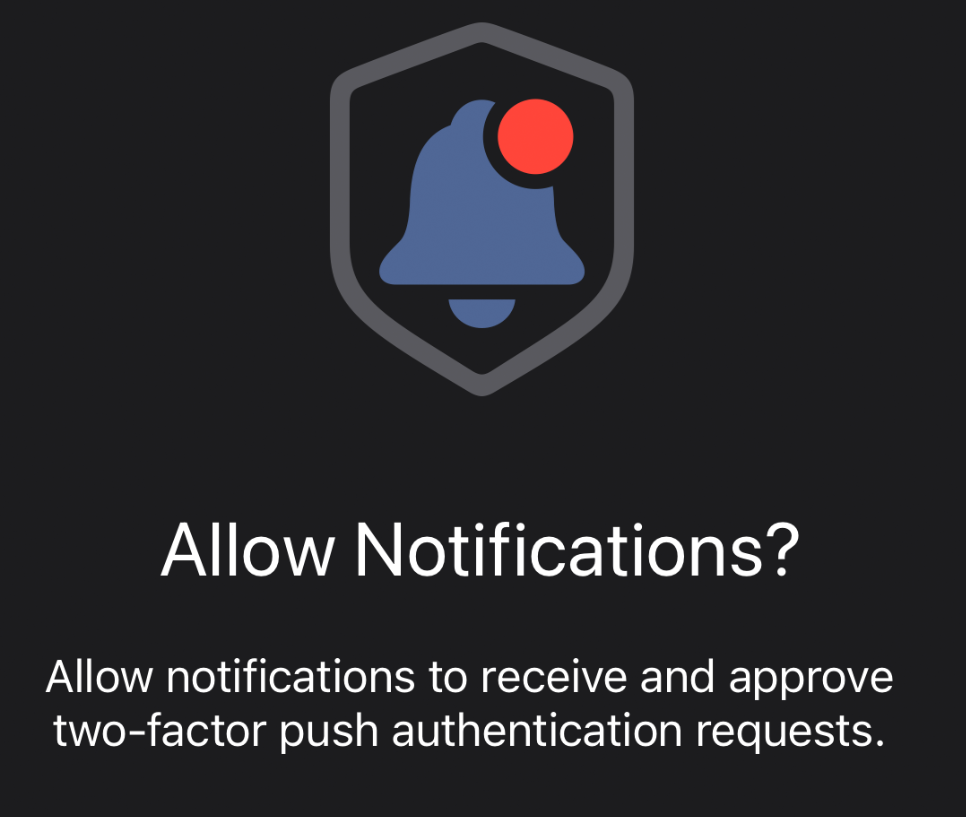
✅ Done!
From now on, your 2FA codes will be sent directly to the billbox app — no need to use an external Authenticator app anymore.
💡 Note:
If you were previously using the Authenticator app on this same smartphone, there's no need to uninstall anything. Once set up, the codes will appear automatically within the billbox app.
Please contact billbox support via support@billbox.com. Our support-team will reset the 2FA for you and inform you accordingly. You can then set up the 2FA again following the detailed step by step instructions given in these FAQs.
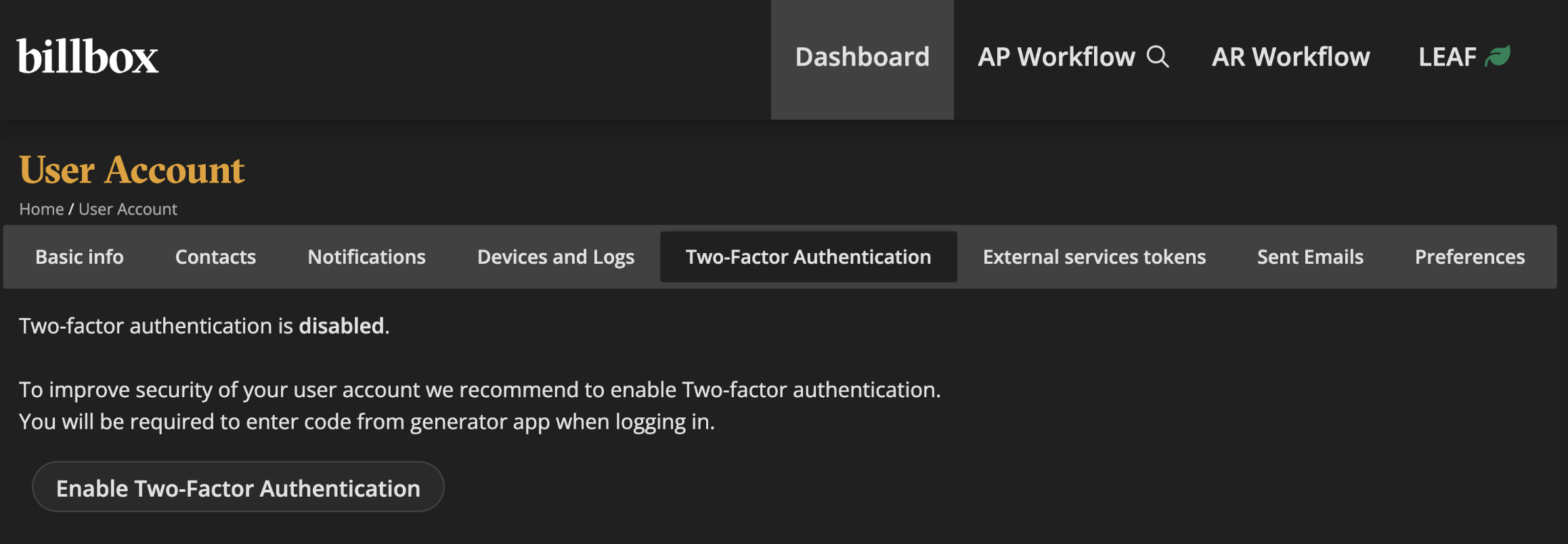
🔐 Step 1: Activate two-factor authentication
1. Open the billbox Desktop App
Go to:
Settings > Two-Factor Authentication > Code Generator Apps
Click the button to activate 2FA.
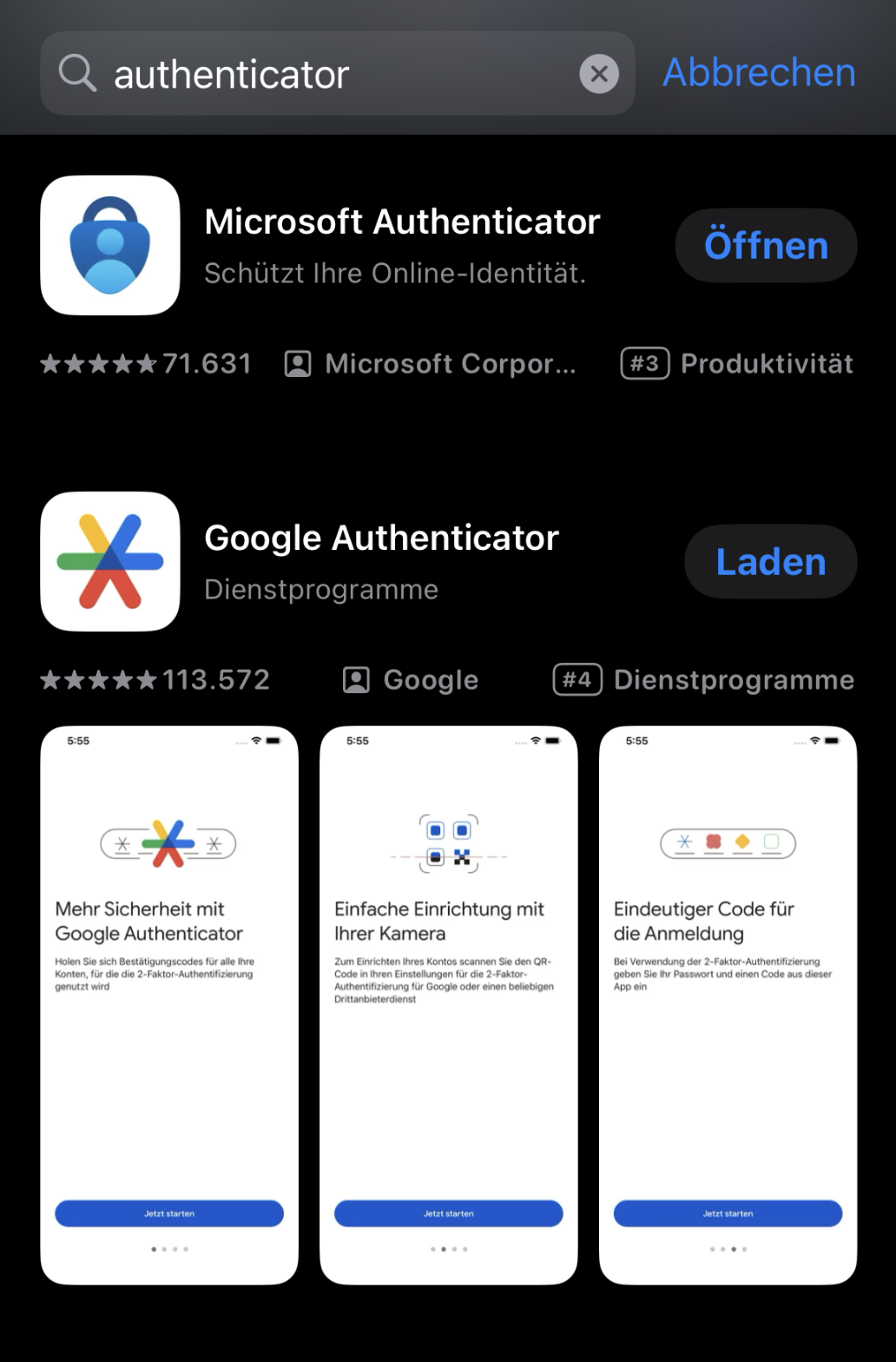
2. Install an Authenticator App
Download an app like Google Authenticator or Authy from the App Store or Play Store onto your smartphone.
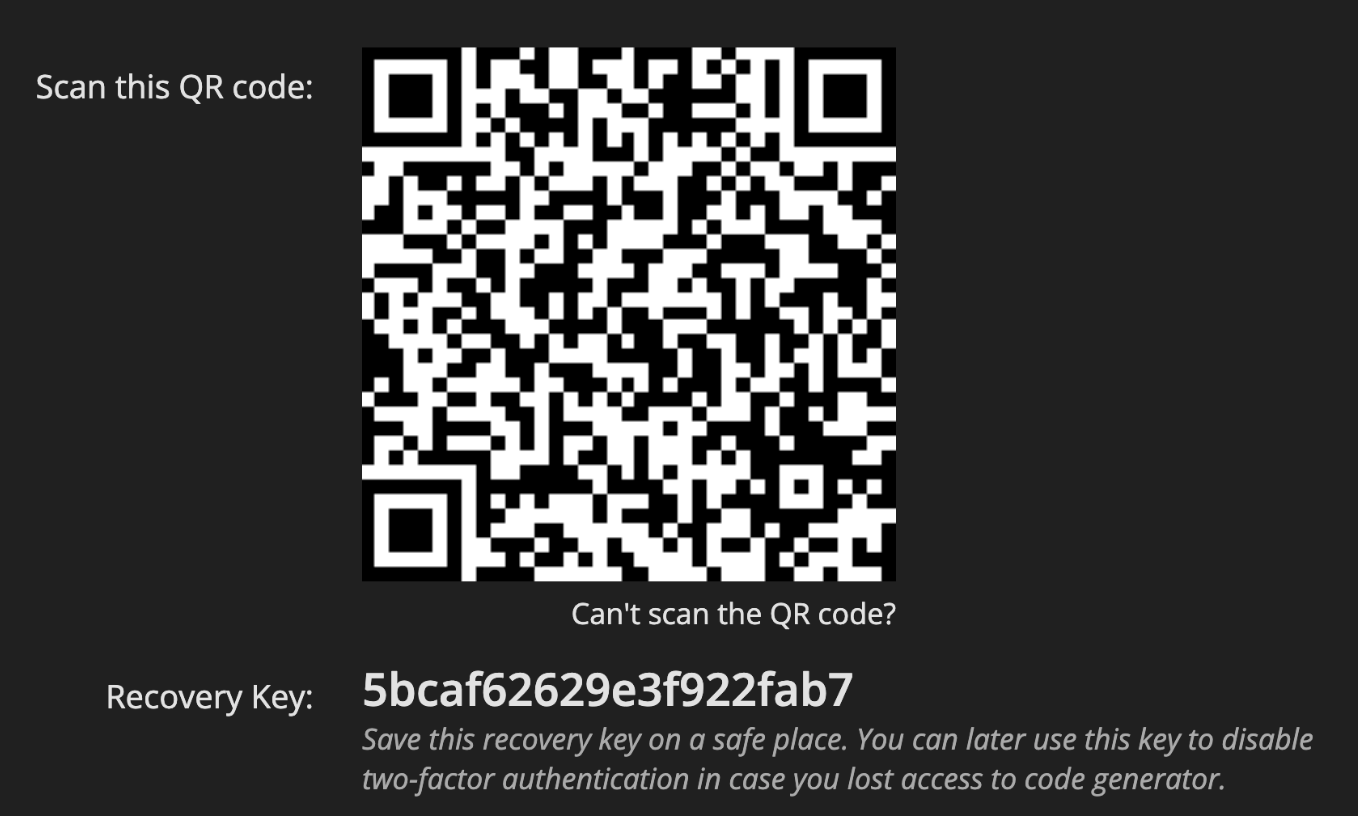
3. Scan the QR code
Open the Authenticator app and scan the QR code shown in the billbox Desktop App. .
4. Save your security details
You will receive:
a. a 6-digit security code
b. a recovery key
👉 Make sure to note down or securely save the recovery key!
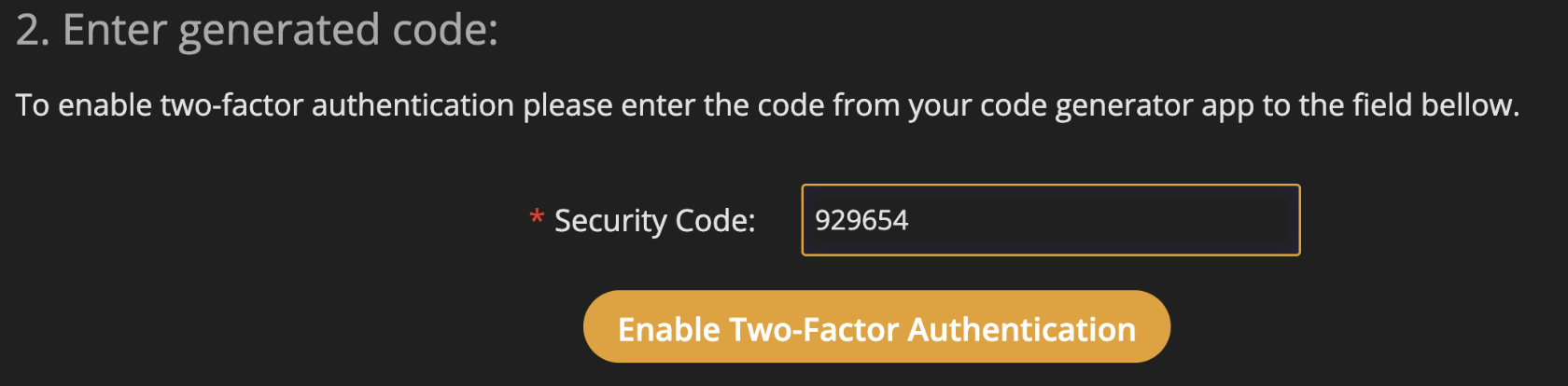
5. Enter and confirm the code
Enter the 6-digit code into the designated field in billbox to complete the setup.
📱 Step 2: Use the billbox app to confirm logins
1. Install the billbox app
Download the app from the App Store or Google Play Store on your smartphone.
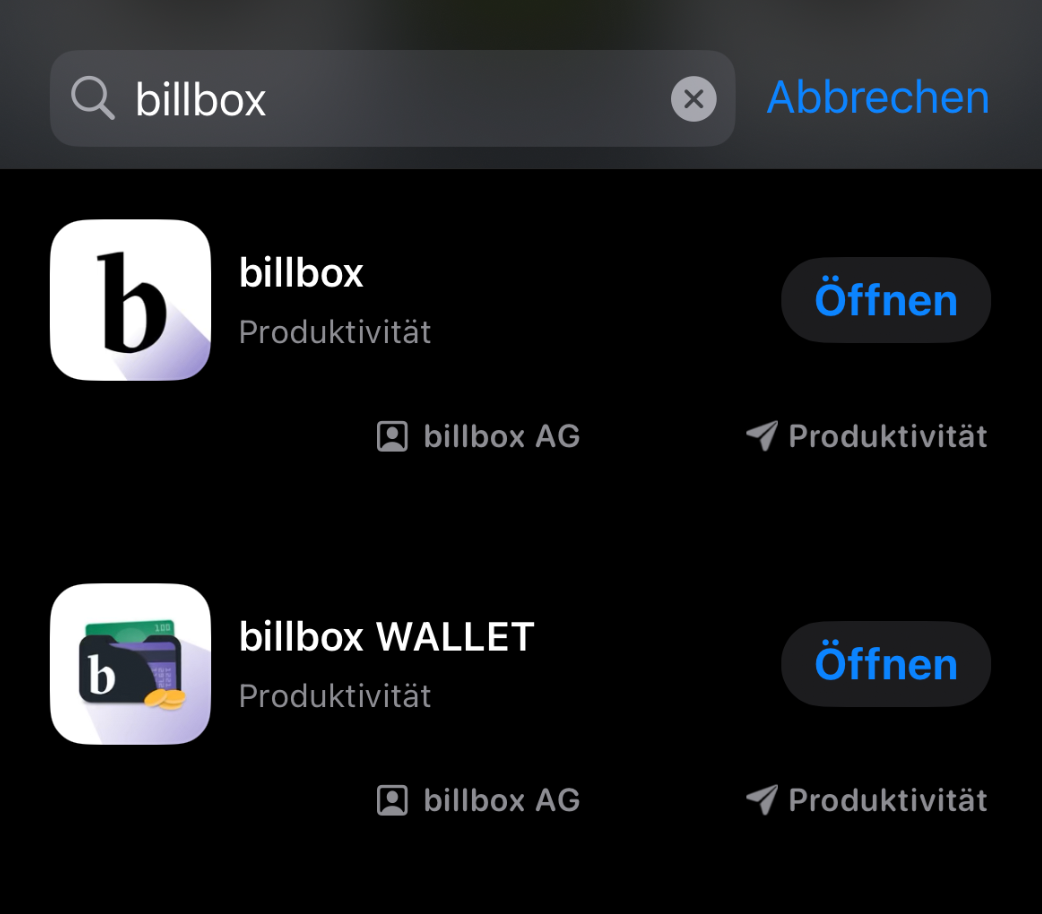
2. Log in to the app
Open the app and log in as usual using your username and password.
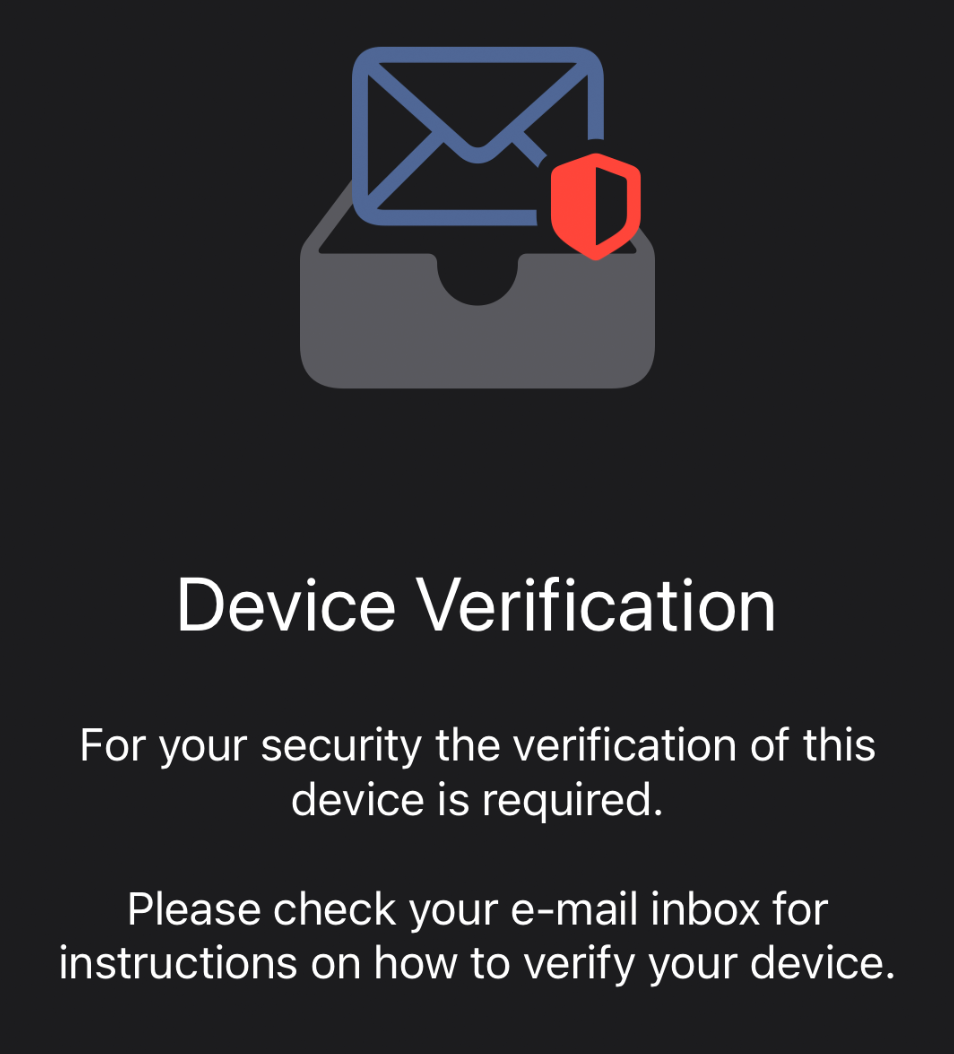
3. Verify your device
You'll be prompted to verify your device – tap on “Refresh Status”to proceed.
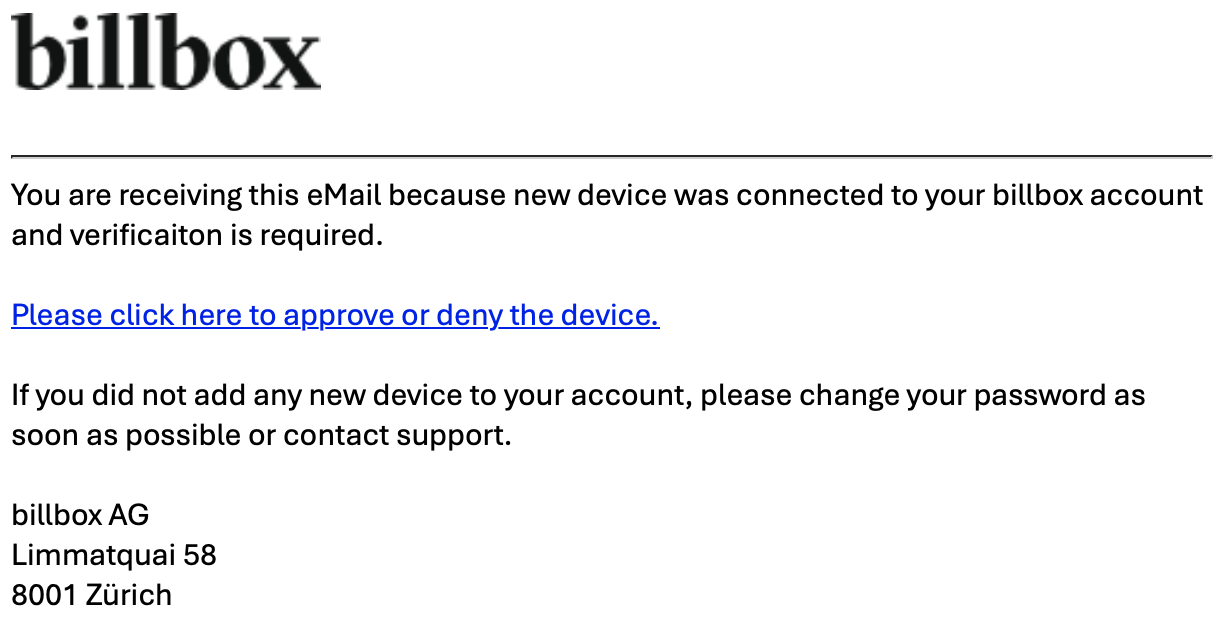
4. Open the confirmation link from the email
An email with a confirmation link will be sent to the address saved in your billbox account.
👉Ideally, open this link on a desktop PC where you're already logged into billbox.
5. Confirm the device and allow push notifications
a. Follow the instructions in billbox to register your smartphone as a trusted device.
b. Allow push notifications when prompted.
✅ All set!
From now on, you can confirm your logins easily and securely using the billbox app – fast, convenient, and without the need for a separate Authenticator app.
🔐 How to set up 2FA using an Authenticator app:
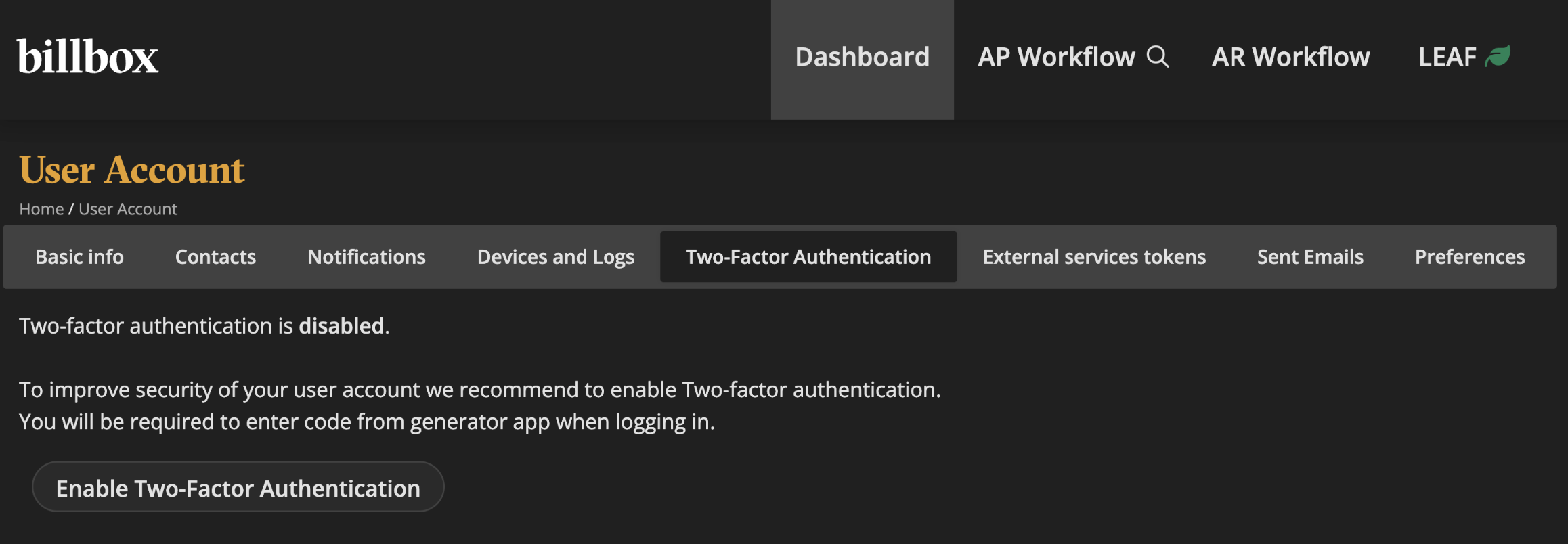
1. Open the billbox Desktop App
Launch the app and go to:
Settings > Two-Factor Authentication > Code Generator Apps
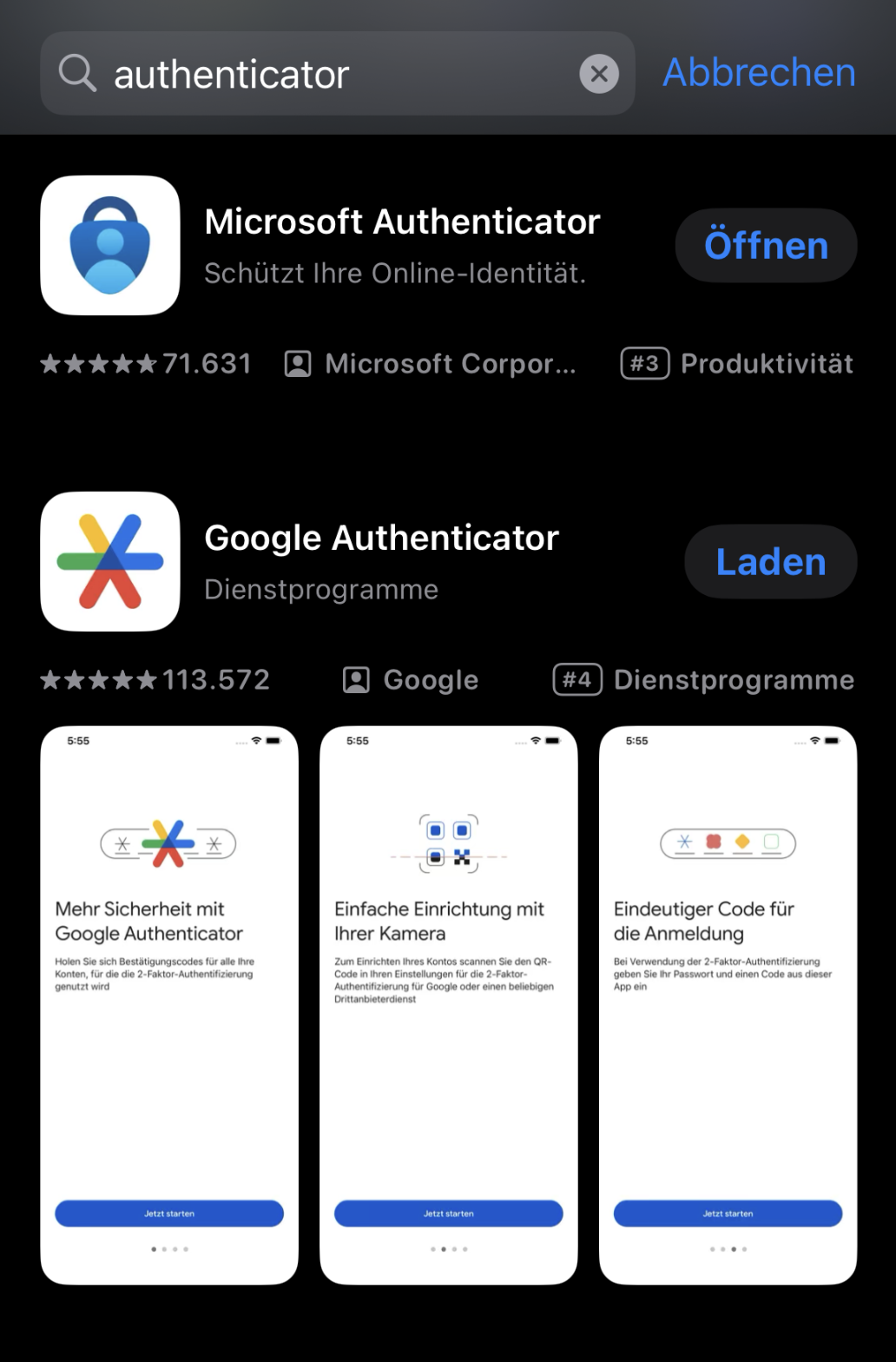
2. Install an Authenticator App
Download an Authenticator app to your smartphone, such as:
a. Google Authenticator
b. Microsoft Authenticator
c. Authy
from the App Store or Google Play Store on your smartphone.
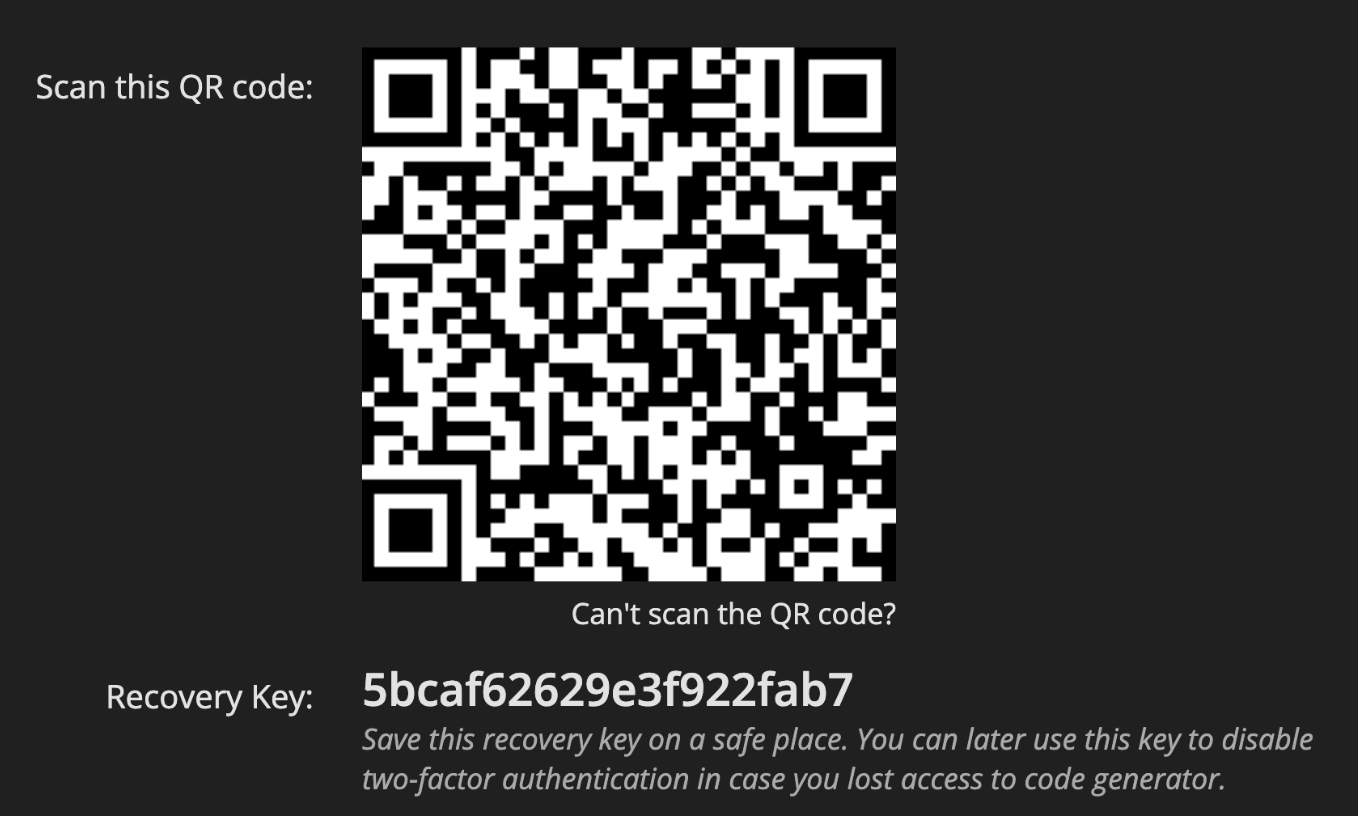
3. Scan the QR code
Open the Authenticator app and scan the QR code displayed in the billbox Desktop App.
4. Secure your authentication details
After scanning, you will receive:
a. a 6-digit security code
b. a recovery key
👉 Be sure to write down or securely save the recovery key!
5. Enter the code and activate 2FA
Enter the 6-digit code into the designated field in the billbox Desktop App to activate two-factor authentication.
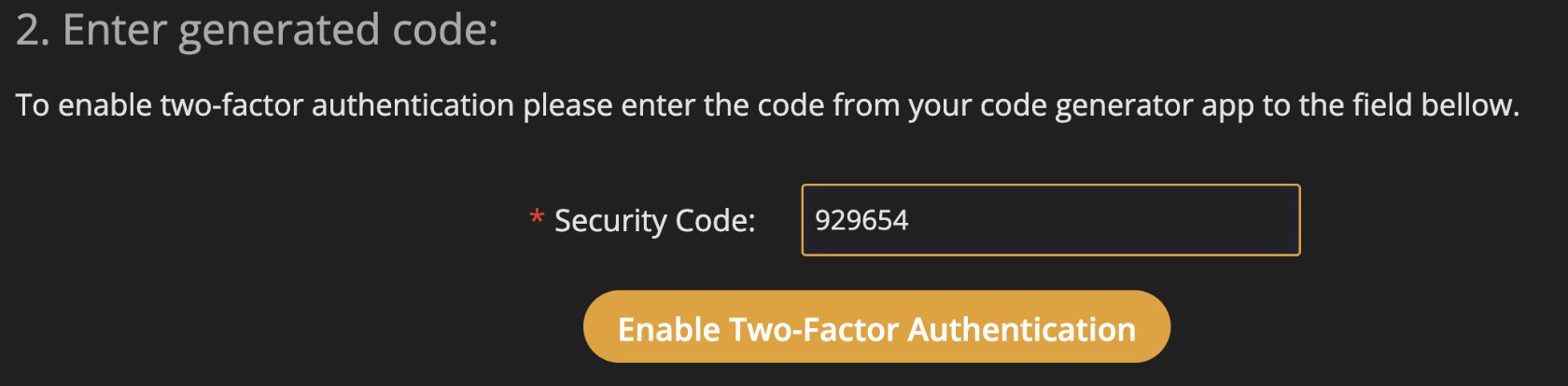
✅ All set!
From now on, you'll confirm your login to billbox by entering the current code from your Authenticator app.
A password alone is not enough for data security. To better protect your data, billbox is making 2FA mandatory for all users as of 1 July 2025, even though it was previously optional.
Two-factor authentication increases the security of your account and protects you from cyber security threats, such as phishing and keylogging. Combining your account password with an additional authentication step, such as a verification code, helps protect your account and facilitates account recovery. To make the process as straightforward as possible, the second approval is carried out via the billbox app once it has been set up. Furthermore, a preferred, alternative code generator can also be used.
It is a security method that requires two different types of verification to confirm a user's identity. It is often used when logging into online accounts to provide additional protection against unauthorized access.
In addition to the initial authentication process, a second validation key must be entered when logging in to billbox. The second factor is entered via the billbox app, which will be available at the end of June as an alternative to a code generator. If both factors are correct, you will gain access to billbox and your data. A one-time use of a code generator is required to set up 2FA via the billbox app.
The Named User Policy states that billbox users must identify themselves using their unique email address. To make this possible and secure, this email address must be a domain email address belonging to the relevant company, so that the customer's identity can be properly assigned.
To benefit from the security of billbox, please set up corresponding emails for your users via your domain. If you have any questions about this process, please contact our support team.
For the second factor, desktop code generators of your choice such as "1Password", “Apple Keychain” or, for example, a browser extension such as “https://authenticator.cc/” can be used. On this list you will find also code generators that are web and desktop based: https://en.wikipedia.org/wiki/Comparison_of_OTP_applications
Every user sets up 2FA in billbox. On June 20 the released update of the billbox app will replace the code generator and make the process as simple as possible. From 20 June, you will find detailed instructions here. Other code generators can still be used as an alternative.
As a customer, you will need to set up your account, which you can easily do via the billbox app from 20 June onwards. Detailed instructions will be available from 20 June after the release update.
No, the policy does not affect the approval process; it only applies to users with direct billbox access.